Students are allowed to keep their Chromebooks home over the summer - so reinforce and/or enhance your kids’ digital skills throughout the summer with Google’s Applied Digital Skills lessons. You kids can make pixel art inspired by Frida Kahlo and Mexico or create a comic strip in Google Drawings. You can also learn job-ready skills from anywhere with the video-based lessons. Have a wonderful and relaxing summer with the family!
Showing posts with label Parent Pointers. Show all posts
Showing posts with label Parent Pointers. Show all posts
Tuesday, May 31, 2022
Friday, April 29, 2022
Voice-Typing in Google Docs
If a student is having trouble writing or typing his/her thoughts on paper, consider voice-typing in Google Docs. This allows the student to talk out ideas and is helpful for those who have difficulty typing as quickly as the thoughts come into their head. This is also great accommodation for students with written expression disability.

In a Google Doc (and Slides), go to the Tools menu and select Voice typing. Punctuation is not automatically included, and your child will need to do some editing after voice-typing. Check out this 2-minute video demo!

Friday, April 22, 2022
Parent Pointer: Connect to nature through technology

image from Wikipedia Commons
Connect to nature through technology
Happy Spring! Take time to get some fresh air and enjoy the beautiful weather. Integrate technology into your family’s outdoor experience to encourage an appreciation and a deeper understanding of the natural world. Use the iNaturalist app to participate in the City Nature Challenge in St. Louis from April 29 - May 9, 2022.
iNaturalist app
Take photos of plants, fungi, and animals (or even evidence of animals such as tracks, nests, shells, or skulls) and iNaturalist can help you identify these organisms. You can also connect with other scientists and naturalists who can help you learn more about nature. By recording and sharing your observations, you’ll create data for scientists working to better understand and protect nature. iNaturalist is a joint initiative by the California Academy of Sciences and the National Geographic Society. Thanks to the generous support of many organizations and individuals, it is FREE for anyone to use. iNaturalist is available on Google Play and Apple.
What are you waiting for? Go out, explore, and learn more about the world around you today with technology.
Monday, March 7, 2022
Experience Edpuzzle

Videos are a powerful learning resource - more than 65% of students are visual learners1, and +95% of students watch YouTube regularly2.
Your child’s teacher may be using Edpuzzle to make videos interactive. With Edpuzzle, students can only watch the video lessons assigned by the teacher. Teachers can embed their own questions and notes in the video, and students will receive immediate feedback so they can see if they’ve understood the content or not.
Experience Edpuzzle as a student with these video assignments:
Cornstarch Walk on Water (2:20)
An Old Trick (1:08)
My Dad’s a Space Alien (0:31)

1) Vakos, Patricia. "Why the blank stare? Strategies for visual learners." (2003). Prentice Hall eTeach.
2) Jarboe, Greg. "No Matter How You Define It, Generation Z Can't Live Without YouTube." (2017). Tubular Insights.
Monday, January 31, 2022

Monday, January 24, 2022
Parent Pointer: Virtual Learning Parent Resources

Are you wondering how you can help your child succeed with virtual learning? Or are you having technical difficulties with Schoology or Chromebooks? Check out the Virtual Learning Parent Resources. This website has information on:
Wednesday, December 15, 2021

Wednesday, December 8, 2021
Parent Pointer: Kami
Kami is a digital annotation tool that helps students (and teachers) interact and collaborate with pdf documents. All students have the Kami extension pre-installed on their Parkway-issued Chromebooks. Kami has a Read Aloud feature that allows learners to hear the text to be read aloud. (Remember, this feature is also available with Chromebook Accessibility.) Kami also has a Dictionary feature, which gives the definition of the highlighted text. Finally, a tool that both students and teachers enjoy is the colorful stickers rewarded after a job well done. Go ahead, have your child test out Kami’s features with this fun Kami Geography Scavenger Hunt Activity (you must use the Parkway-issued Chromebooks and open the PDF with Kami).


Wednesday, December 1, 2021

Monday, November 15, 2021
Chromebook Accessibility: Hear text read aloud

To have pages read aloud to you:
On your Chromebook, at the bottom right, select the time. Or press Alt + Shift + s
Select Settings (gear icon).
On the left, select Advanced > Accessibility > Manage accessibility features.
To listen to all text - Under “Text-to-Speech,” turn on Enable ChromeVox (spoken feedback).
To listen to part of a page - Under “Text-to-Speech,” turn on Enable select-to-speak.
Be sure to also check out other Chromebook accessibility features!
Monday, November 1, 2021
Parent Pointer: Taking a Screenshot with the Chromebook
Throughout the semester your child(ren) may be required to capture the Chromebook screen (take a picture) to show evidence for the assignment. Here is a video of both methods.
To take a screenshot of the full screen with a Chromebook, hold down the Ctrl + Switch Window keys:


To take a screenshot with part of your full screen with a Chromebook, hold down the Ctrl + Shift + Switch Window keys. Highlight what you want to capture.


All files are saved to your Downloads folder.
Tuesday, October 19, 2021
Parent Pointer: Reading Digitally vs. Print
“As we saw in this pandemic, reading digitally is not going anywhere… and, in fact, is what made learning even a possibility the past year and a half.” ~ Dr. Lauren Trakhman
If reading digitally is not going anywhere, how can we help our kids learn to read digitally?
Encourage them to slow down while reading. Digital texts encourage behaviors such as skimming and keyword seeking. We also assume that reading faster means that it is better understood. Encourage your child to take deliberate moments to stop, think, and reflect on what he/she is reading - Do you agree with the author? Why or why not? You can also balance digital reading with writing key points on paper.
Be familiar with the digital environment and environment. Not knowing how to use digital tools to annotate adds another complexity to the task of reading. By the time the student has figured out how to use the tools, he/she may have forgotten what the text was about. Take some time to use the digital tools with simple, familiar text before complex reading. For example, enroll in Parent University to be familiar with the digital tools in Schoology to help your child.
Minimize online distractions. It is easy to get distracted when reading online, with having multiple tabs opened and notifications set. Minimize those distractions by muting notifications while reading.
If possible, change the view of the document. Most readers retain and comprehend the digital text better when it is in a page view, as opposed to scrolling. One of the reasons why is because we associate the text and ideas with their placement on the ‘paper.’ When reading for knowledge and comprehension, try to change to page view to simulate page-turning, as opposed to scrolling.
These are some of the tips summarized from The Science of Reading’s podcast interview with Dr. Trakman and Dr. Alexander. For more, listen to The Science of Reading: The Podcast - Season 4, Episode 4: Learning to Read Digitally vs. in Print.
And for more tips about reading online, check out last year’s parent pointer about reading online!
Encourage them to slow down while reading. Digital texts encourage behaviors such as skimming and keyword seeking. We also assume that reading faster means that it is better understood. Encourage your child to take deliberate moments to stop, think, and reflect on what he/she is reading - Do you agree with the author? Why or why not? You can also balance digital reading with writing key points on paper.
Be familiar with the digital environment and environment. Not knowing how to use digital tools to annotate adds another complexity to the task of reading. By the time the student has figured out how to use the tools, he/she may have forgotten what the text was about. Take some time to use the digital tools with simple, familiar text before complex reading. For example, enroll in Parent University to be familiar with the digital tools in Schoology to help your child.
Minimize online distractions. It is easy to get distracted when reading online, with having multiple tabs opened and notifications set. Minimize those distractions by muting notifications while reading.
If possible, change the view of the document. Most readers retain and comprehend the digital text better when it is in a page view, as opposed to scrolling. One of the reasons why is because we associate the text and ideas with their placement on the ‘paper.’ When reading for knowledge and comprehension, try to change to page view to simulate page-turning, as opposed to scrolling.
Saturday, October 2, 2021
Parent Pointer: Creating Bookmarks on the Chromebooks (really in Chrome)
This post was originally posted on December 9, 2020, and has been updated as a reminder or a tech tip for Virtual Campus parents.
Help your child navigate to a video conferencing room with just a click of a button! To do this on the Parkway-issued student Chromebooks:
Click on the teacher’s video conferencing link to get the web address.
Highlight the star at the end of the web address to add it as a bookmark.
Change the name of the bookmark to the teacher’s name or the subject.
The icon with its name will appear below the web address.
Now all the student has to do is to click on the icon or name and he/she will go directly to the video conference. You can also create bookmarks with shared Google Docs/Slides agendas. No need to click and search for the link in Schoology. Here’s a short video (less than a minute) to help guide you through the process. Good luck!
Friday, September 24, 2021
Commit to Learning
This school year we will focus on care for students and their emotional well-being. We will continue to focus on relationships while growing as learners. Students are able to anchor themselves with their virtual classmates and teachers as part of Parkway Virtual Campus.
Take inventory of what is working for your child in the virtual classroom and what they still need to make this as successful as it can be.
What can you do at home to support your child?
Reevaluate your child’s learning environment at home.
Is the learning area free from distractions?
Is your child able to be proactive, present, and purposeful in their virtual classroom?
Maintain a daily or weekly task list to stay organized and on track.
What are we continuing to work on as a district?
Parkway Virtual Campus teachers will be working together as Collaborative Learning Teams and with curriculum coordinators to design and deliver engaging learning experiences for students.
Developing connections between students and teachers.
Friday, September 10, 2021
Digital Citizenship
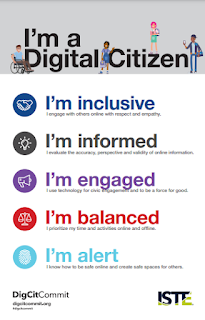
Technology has greatly changed but one thing has remained constant: the importance of teaching students how to respect and protect themselves and others online. Digital Citizenship is more than just online safety. More than creating a strong password.
ISTE website reads, “Digital citizenship shouldn’t be a long list of don’ts. It should be about the do’s that help create thoughtful, empathetic digital citizens who can wrestle with the important ethical questions at the intersection of technology and humanity.”
Those do’s include:
Using technology to make your community better.
Engaging respectfully online with people who have different beliefs than you.
Using technology to make your voice heard by public leaders and shape public policy.
Determining the validity of online sources of information.
Friday, August 27, 2021
Parent University

Are you interested in learning more about the online platforms that Parkway is using with students during distance and virtual learning?
Parent University is a course created in Schoology, our district Learning Management System, that has information about Schoology, Google for Education, videoconferencing, and digital citizenship. Within the course you will find information that will help you understand the tools students use as well as opportunities for you to experience the tools from the student perspective. The goal of the course is to support you in feeling confident that you can help your child(ren) with online learning in Parkway. While you are welcome to explore the materials in any order, it would be beneficial to work through the Schoology folder first to learn how to interact with tools you will encounter in other folders. Follow these directions to enroll in the Parkway Parent University Schoology Course! Be sure to scroll down to page 2.
Written By: Elegan Kramer
Wednesday, May 26, 2021
Parent Pointer: Viewing an Archived Course
Written by Kristen Harms// posted by Elegan Kramer
If there is an activity or assessment that you would like to view again with your child, but that course is archived, you can find the materials by following the directions below.
Students can view course assignments and managed assessments in archived courses but they cannot make submissions. Students may still view existing submissions in archived courses if permission to view submissions is enabled in the assessment settings.


Tuesday, May 18, 2021
Parent Pointer: Applied Digital Skills courses

What will you do this summer? Play this Mad Libs to find out!
Keep you and your family's digital skills sharp with Google’s Applied Digital Skills courses. The Applied Digital Skills curriculum consists of free resources designed to build digital literacy in education and for jobs. For example, you can have fun with digital arts and games by making Mad Libs such as the one above and making pixel art with Google Sheets. Or take virtual field trips and explore art from home by going on a scavenger hunt through Italy or exploring the History of Humankind in Kenya. Model positive digital citizenship by evaluating the credibility of online sources or understanding your digital footprint.
What digital skills will you learn this summer?
Monday, May 10, 2021
Goosechase


Want to go on an adventure with your child? Want to have a fun and educational experience that is different than everyday learning on the Chromebook?
Goosechase is an interesting scavenger hunt app that is interactive.
Create The Game
Build your game on the website, giving it a name, picture and description to mark it as yours. Set how long the game will run and whether there’s a password to join.
Choose Missions
Each GooseChase game has a list of missions for participants to complete. You can create your mission list using the bank of 100+ tested missions or by designing your own from scratch.
Missions have a name, description, point value and an optional link or photo to provide extra information. For text & gps missions, the answer and target destination must also be provided.
Monday, May 3, 2021


Subscribe to:
Posts (Atom)